
iceQ SmartBox V2
SUMMARY
The following installation guide will provide you with the necessary information to successfully install iceQ 2.0 into your Ice Merchandisers.
01
What you should have received with your iceQ purchase
05
How to connect the iceQ controller

02
Installing the Sensor Bar
06
How to check everything out before leaving the site
UPON RECEIVING YOUR ICEQ 2.0, CALL ME AT 925.984.9371 TO SCHEDULE YOUR ONBOARDING CALL
07
Tools Required
How to Drill the Exit Hole
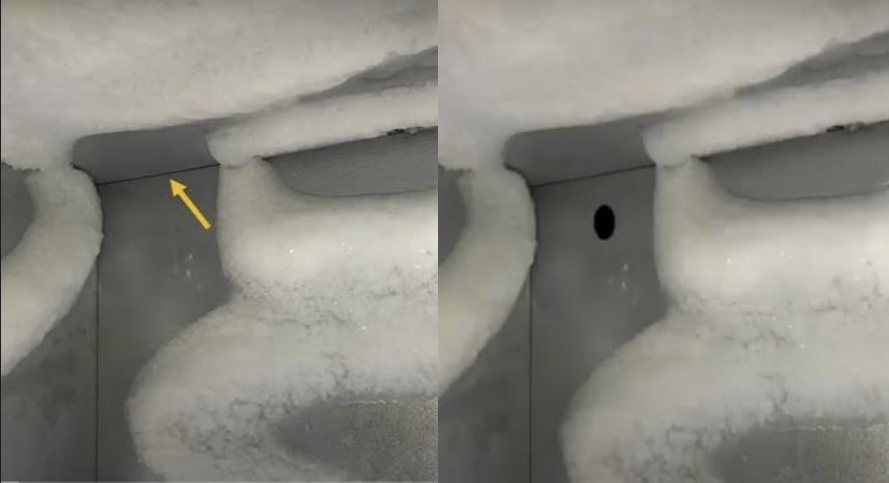
03
Securing the Sensor Bar Cable
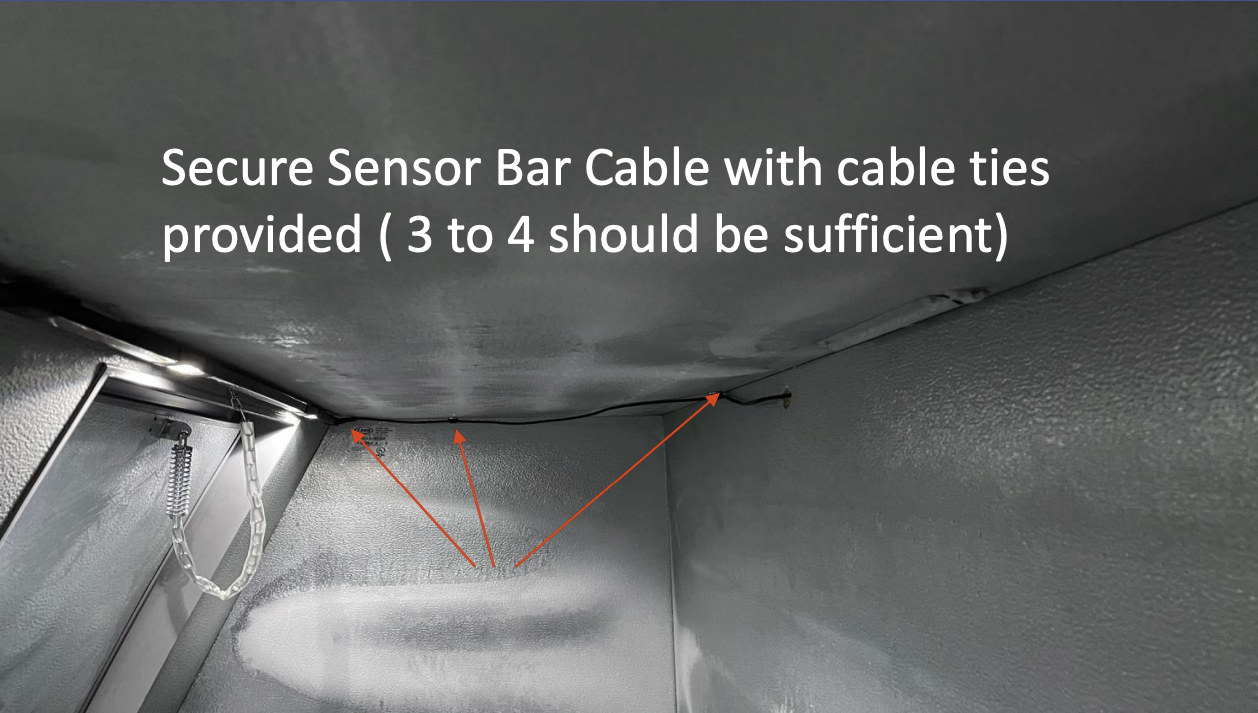
04
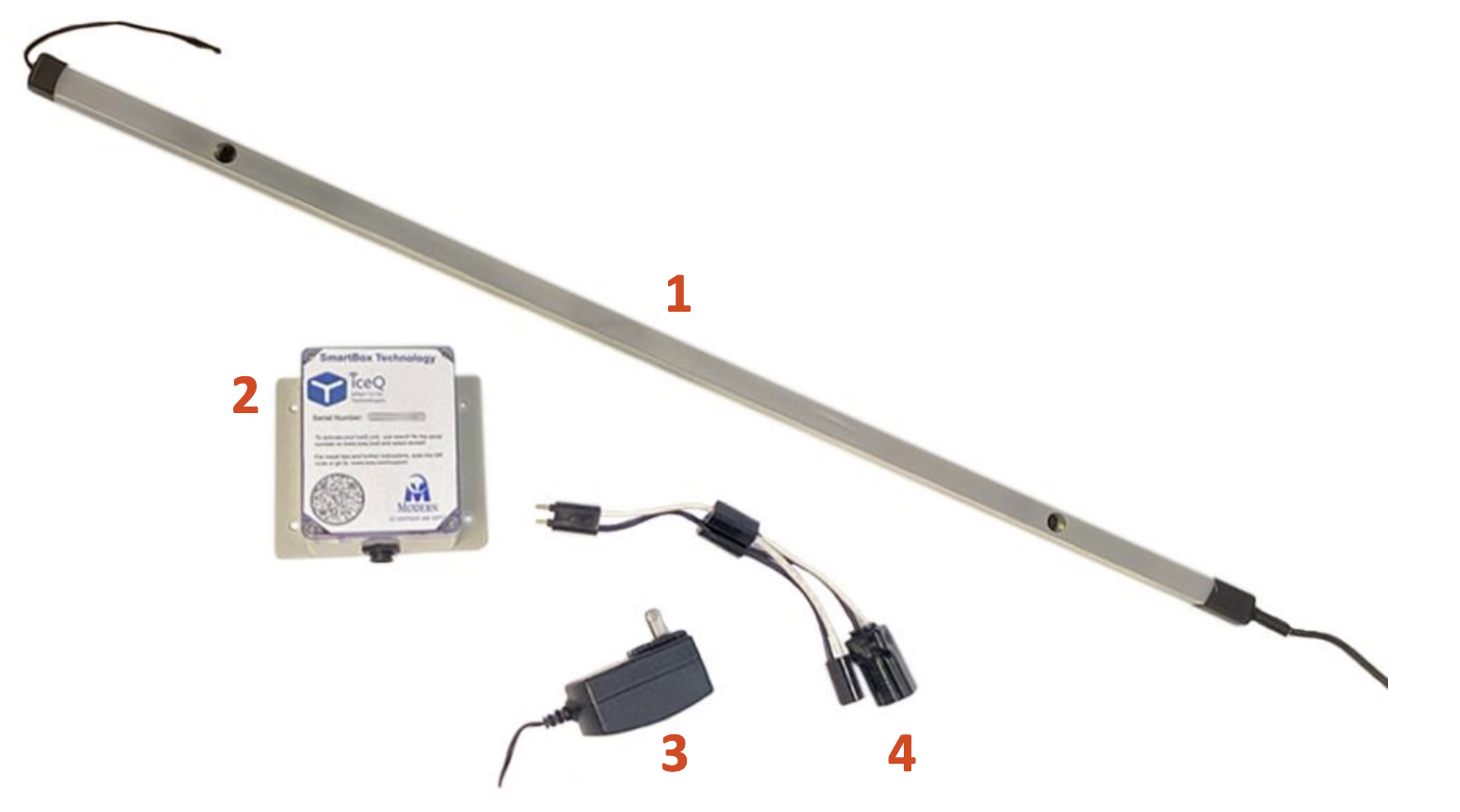
01 - What you should have received with your iceQ purchase
Sensor Bar — Goes inside the freezer, mounted at the front with magnets.
Controller — The iceQ Controller that connects to the freezer power and the Sensor Bar; collects and sends data to the iceQ system.
Power Supply — A 12-volt power supply that provides power to the Sensor Bar and the Controller.
Y-Adapter — Mounts easily and directly into the Leer light wiring; can also be used on non-Leer freezers.
UPON RECEIVING YOUR ICEQ 2.0, CALL ME AT 925.984.9371 TO SCHEDULE YOUR ONBOARDING CALL
02 - Installing the Sensor Bar
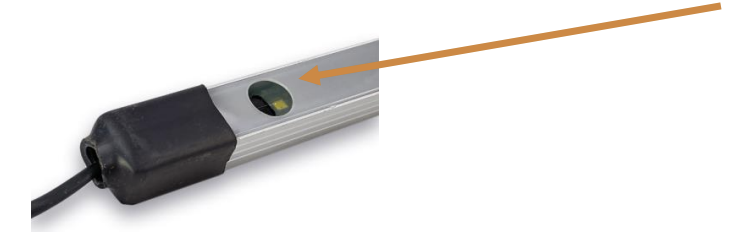
The Sensor Bar is the first thing you setup. Take the bubble wrap off and uncoil the cable. Check each sensor to make sure the plastic cover has not shifted and or remove any debris. It should look like this:
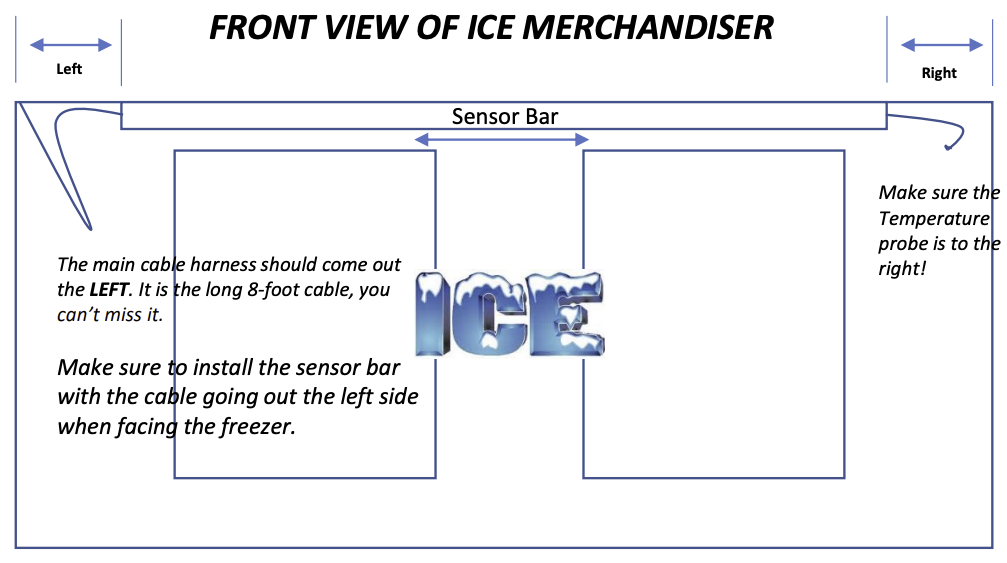
Next, mount the Sensor Bar on the front of the freezer centered left to right. Just make sure the distance on each side is the same. Measure each side and slide the Sensor Bar (left to right), until the Sensor Bar end is the same distance to the edge of the freezer as shown in the diagram below.
Make sure to mount the sensor bar with the long (main cable) to the left and the temperature probe on the right.
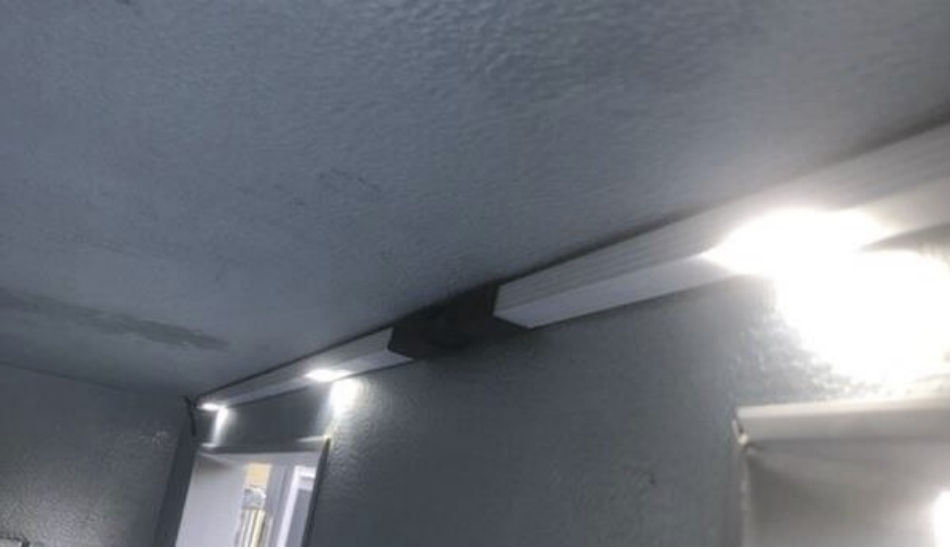
Here is picture of what your Sensor Bar should look like from the inside of a freezer. Note, the lights are on. When you first install the Sensor Bar, the lights will not come on until you connect the controller to the power supply, but we’ll get to that next! It is important to make sure the Sensor Bar is up against the front of the freezer, so it does not get damaged or knocked off. By placing it up against the front of the freezer as shown below, it will not interfere with drivers stuffing the freezers or customers pulling bags of ice out. If there’s a light fixture already installed and there’s not enough room to mount the Sensor Bar, remove the light fixture! We got LED lights that won’t burn out.
03 - Drill Exit hole for Sensor Bar Cable
CAUTION: MAKE SURE TO TURN ON THE FREEZER TO SEE WHERE THE FROST LINES ARE AND AVOID THEM AT ALL COSTS! IF YOU SCREW THROUGH A COIL THE MERCHANDISER WILL BE RUINED.
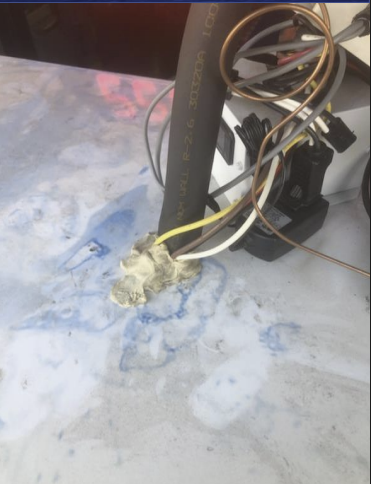
For Cold Wall and even for Auto-Defrost Ice Merchandisers, drill a one-inch hole out in an area where no coils are present at the back as pictured above.
Auto-Defrost Pro Tip: Many of our customers that have Auto-Defrost Freezers, just feed the cable through the evaporator and no drilling is required. Either approach will work.
Make sure to use the gromets provided and then use Plumber's putty to plug the hole. Also, the Sensor Bar Cable is equipped with a dust-cover, to protect it from getting debris and other material. Make sure to leave this on until you connect the cable to the iceQ Controller.
04 - Securing the Sensor Bar Cable
Using the cable clamps provided and the self-screwing screws, secure the cable as shown in the picture, making sure to not drill into a coil! (applies to Cold wall Freezers, Auto-Defrost Freezers, you can drill anywhere!
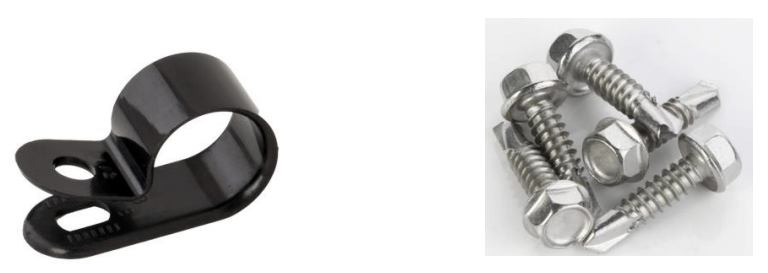
MAKE SURE TO TURN ON THE FREEZER TO SEE WHERE THE FROST LINES ARE AND AVOID THEM AT ALL COSTS! The seams and the corners are your best bet.
05 - Installing the iceQ Controller
Once you have fed the main Sensor Bar Cable all the way through the Exit Hole, you are ready to connect the iceQ Controller.
There are three basic steps to connecting the controller:
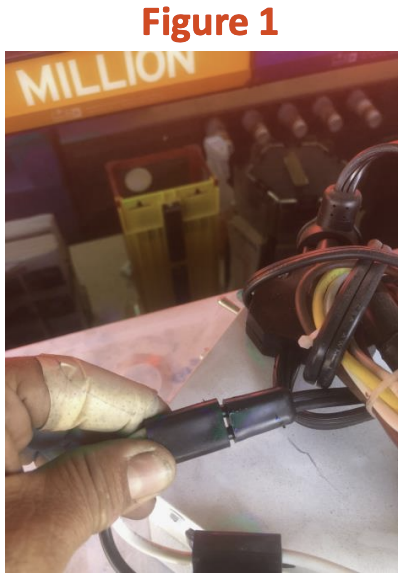
Connect the Y-Adapter to the Light fixture adapter as shown in figure 1. (note this comes standard on all Leer Merchandisers. If missing, you the Y-Adapter to hard wire into the freezer power).
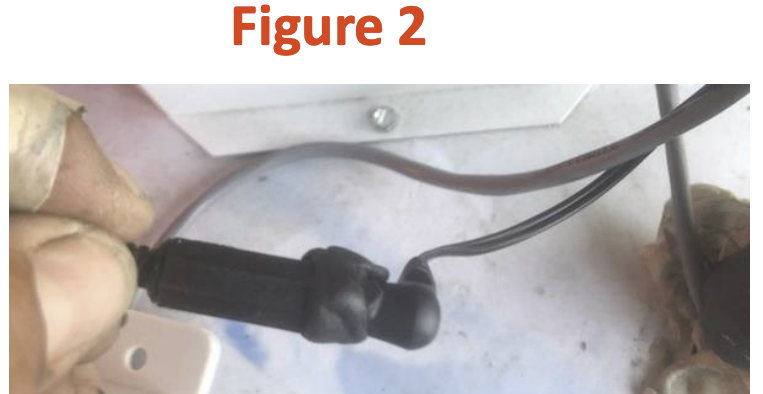
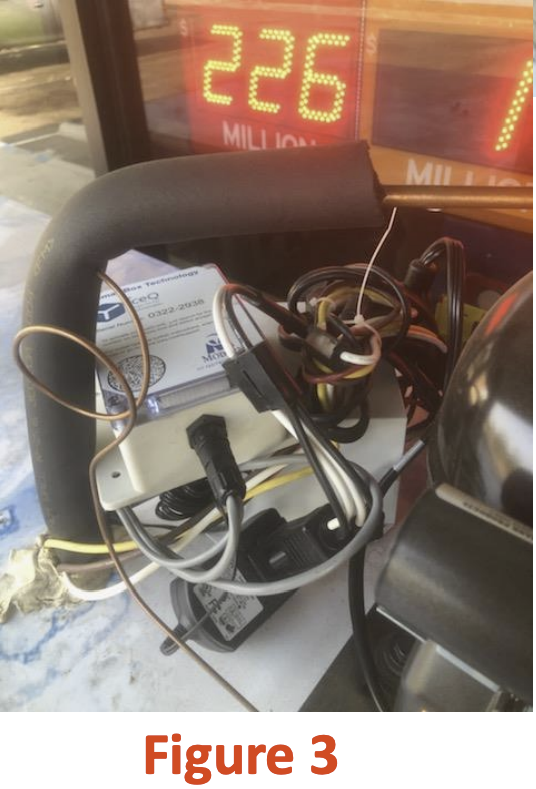
Connect the Power Supply to the Y-Adapter and to the power connector on the main Sensor Cable as show in Figure 2. Be sure to use the sticky tape to seal the power connection as shown in Figure 3.
Connect the main Sensor Bar Cable to the Controller and tuck all the excess wires using the wire ties provided.
06 - Validate that the install was successful
Testing for connectivity is easy super easy! If you see a flashing green light on the controller after connecting the power, you are good.
Also, if can see the readings on the iceQ mobile site, you have connectivity!
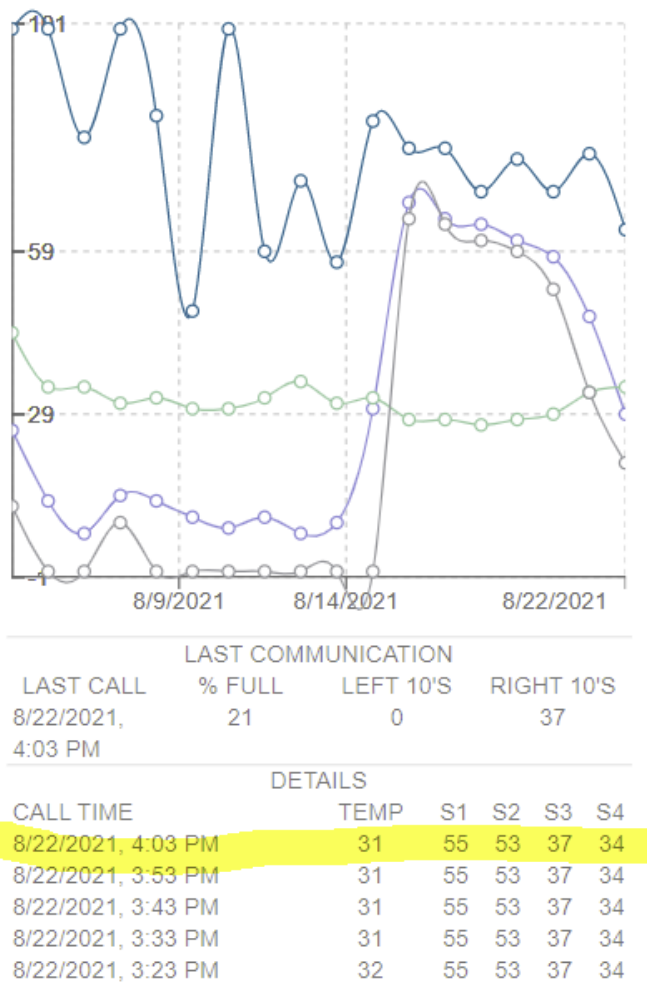
Validate that you installed everything correctly, by opening both doors of the freezer and leave them open. Next, power cycle the controller by unplugging the power source. After about 60 seconds, refresh the readings shown on the right , and make sure the inches correspond to the actual distance per sensor. A good eye or tape measure does the trick!
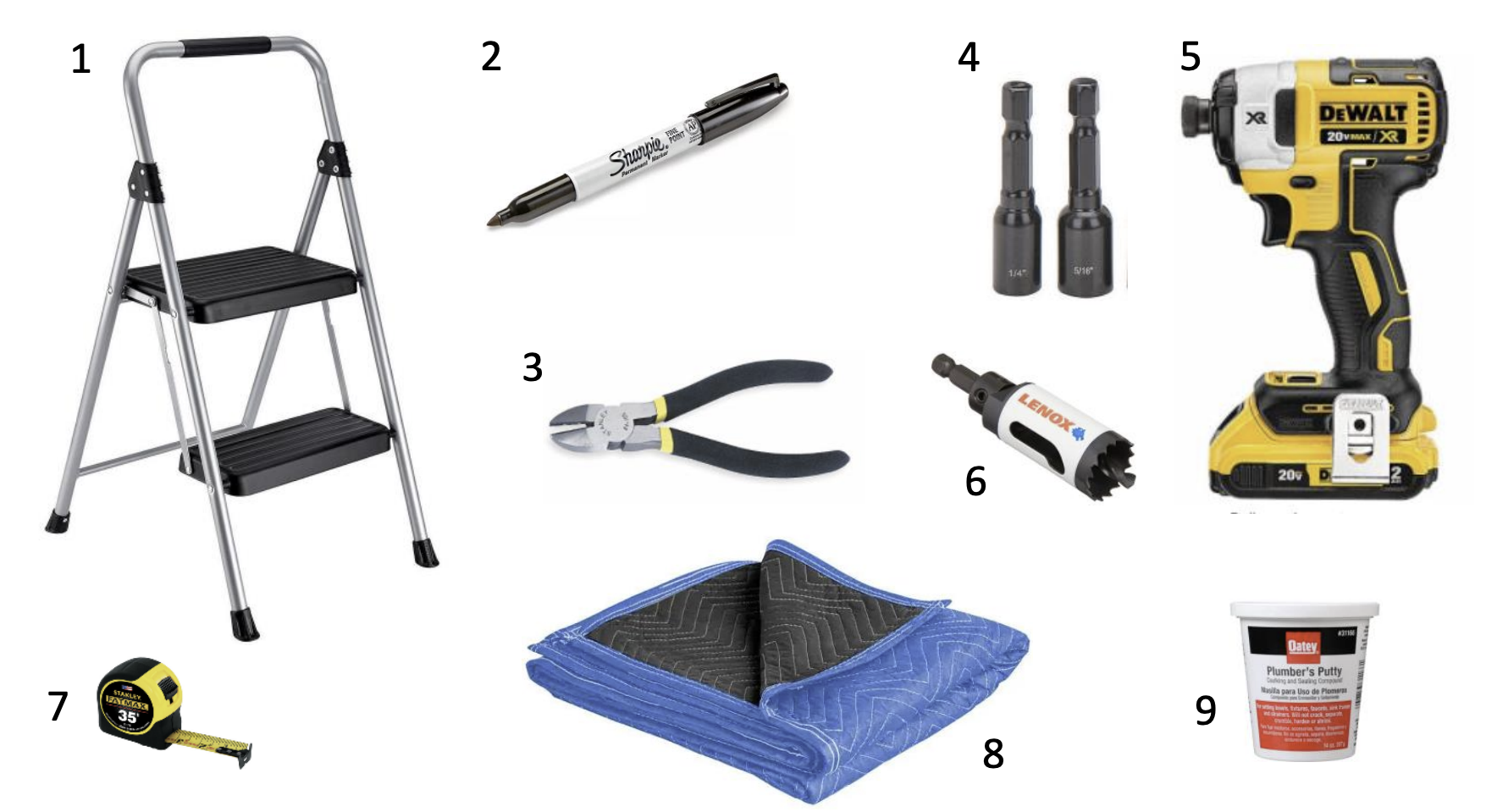
07 - Tools Required
Step Chair or ladder to Get onto of the freezer!
Black Sharpie to Mark exist hole
Wire Cutters to Cut off wire ties and cut wires
¼ and ½ bit drivers To remove the cowling
Impact Drill Driver to remove cowling and drill exit hole.
1 inch hole driver to drill one exit hole
Shipping Blanket to protect ice if doing a field install
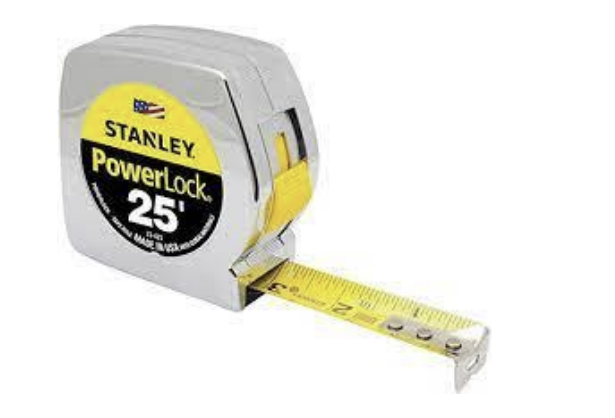
Tape Measure: You kidding me!
Plumbers Putty to seal the hole you make